Documentation

    How to use Firestore Studio, from the first connection to restoring a change.

    Querying

    The query toolbar

    Engine, view, run button and where each control lives.
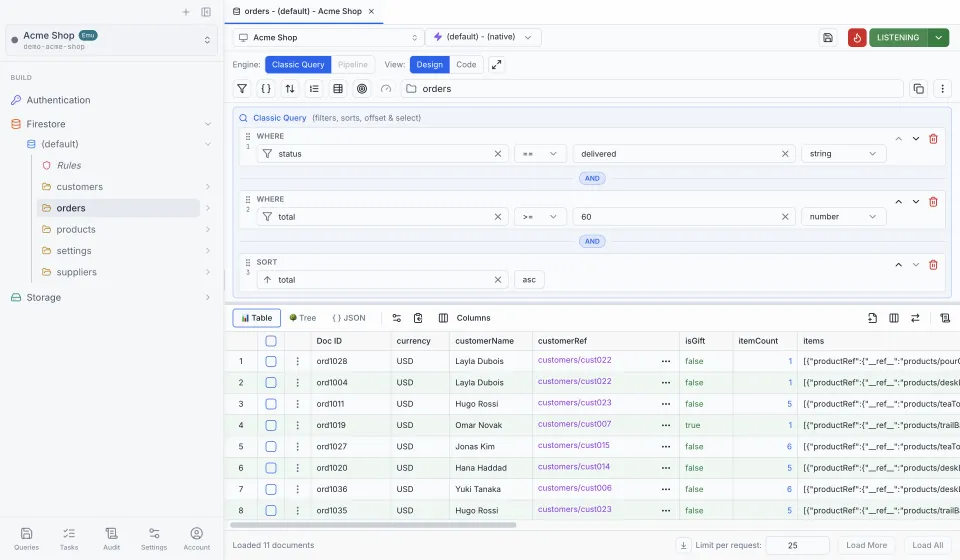
    The query builder with two filters and a sort above the results

    A collection tab runs its query when it opens. To change the query, use the controls above the grid.

    ControlWhat it does
    Engine: Classic Query / PipelineChooses how the query is built. Pipeline needs an Enterprise (native) database and is disabled, with the reason, elsewhere.
    View: Design / CodeBuilds the query with rows, or shows and edits it as SDK code.
    Add Filter, Add Filter Group (AND/OR), Add SortAdd rows to the query builder.
    Show Offset, Show Select Fields, Show Nearest (vector search)Show extra rows for cursors and offset, field selection and vector search.
    RUN QUERY and its arrowRuns the query. The menu offers Query, Count, Sum, Average, and Explain on a pipeline tab.
    Save / Save AsSaves the query. See Saved queries.
    Realtime buttonTurns the realtime listener on or off where it is available.
    Time-travel buttonReads documents at a past time. See Time-travel and restoring from a past time.

    Press Enter in a filter value box or a cursor value box to run the query. If no database is selected, the run is refused with Please select a database first.

    Note: The app sends every filter row. A filter row that is unfinished or has a value the app cannot read stops the run with Complete or remove the unfinished filter and names the problem, so a half-built query never runs on the whole collection.
    Filters and filter groups

    Operators, value types and AND/OR.

    1. Step 1: Choose Add Filter. A row appears with a field, an operator, a type and a value.
    2. Step 2: Pick or type the field. Type a dotted path such as address.city for a nested field.
    3. Step 3: Pick the operator, the value type and enter the value.
    4. Step 4: Choose RUN QUERY.
    OperatorNotes
    == !=Equality and inequality.
    > >= < <=Comparison. A null value cannot be compared with these.
    in not-in array-contains-anyTake a list: type 1, 5 or [1, 5].
    array-containsThe array field contains the value.

    Value types are string, number, boolean, timestamp (YYYY-MM-DD HH24:MI:SS), null, reference (collection/documentId), geopoint (latitude and longitude boxes), array (["value1", "value2"]) and map ({"key": "value"}). A value that cannot be read as its type, such as letters in a number, is flagged and the run is refused.

    Rows are joined with AND. Click the AND button between two rows to change it to OR. Add Filter Group (AND/OR) adds a group with its own Match setting and its own filters. Drag a row, or press Alt+Up and Alt+Down on it, to reorder.

    Note: Firestore needs a composite index for some filter and sort combinations. If it does, the run fails with a message and a link. See Missing index.

    Sort, select, cursors, offset and vector search

    The other rows of the classic builder.

    • Add Sort: pick a field and ascending or descending. Add more rows for a multi-field sort.
    • Show Select Fields: type comma-separated field names, for example name, age, email, to read only those fields.
    • Show Offset: a row with startAt, startAfter, endAt, endBefore and offset. For a cursor, choose Field Values or Document Snapshot and give a document ID. For offset, enter the number of documents to skip.
    • Show Nearest (vector search): enter the vector field, the query vector (0.1, 0.2, 0.3 or [0.1, 0.2]), a limit from 1 to 1000 (10 by default) and a distance measure: EUCLIDEAN, COSINE or DOT_PRODUCT. You can also set a distance result field and a distance threshold.

    Note: A Nearest search runs once. While it is on, realtime, Load More and bulk actions on the query results are refused with the message Nearest is on.

    The limit comes from the Limit per request box in the footer. See The data grid.

    Count, Sum and Average

    Aggregate the documents a query matches.

    1. Step 1: Set the filters you want in the query builder.
    2. Step 2: Open the menu next to RUN QUERY and choose Count, Sum or Average.
    3. Step 3: For Sum and Average, enter the Field Name and choose Calculate.

    Count returns the number of matching documents. Sum and Average read a numeric field. The result shows in an aggregate row in place of the grid. If the field is missing or has no numeric values, the app says Field not found or contains no numeric values.

    Note: Aggregate queries run once and do not use realtime. On a pipeline tab, Count, Sum and Average run through the pipeline.

    Pipeline queries

    Build multi-stage queries on Enterprise (native) databases.

    Pipeline queries chain stages: filter, sort, compute fields, aggregate and more. They run on Enterprise edition databases in Native mode, marked (native).

    1. Step 1: Open a collection on an Enterprise (native) database.
    2. Step 2: In Engine, choose Pipeline. The note beside it reads (Enterprise edition · one-shot · realtime disabled).
    3. Step 3: Choose Add pipeline stage and pick a stage, or use the toolbar shortcuts Add Where, Add Sort, Add Offset, Add Select, Add Limit, Add Fields, Add Aggregate and Add Distinct.
    4. Step 4: Fill in each stage. Reorder or remove stages with the buttons on the stage row.
    5. Step 5: Choose RUN QUERY, or Explain from the run menu to see the plan.
    GroupStages
    Input Stagescollection, collectionGroup, database, documents, subcollection, literals
    Filterwhere, whereGroup, search
    Sort & Paginatesort, limit, offset, sample
    Fieldsselect, addFields, define, removeFields, replaceWith, distinct
    Aggregateaggregate
    Transformunnest, let
    VectorfindNearest
    Combineunion
    AdvancedrawStage
    Write (changes data)update, upsert, insert, delete. See Pipeline write stages.

    Arguments can be a field, a literal value or a function. Open the Pipeline functions reference from the Code view for every function with its arguments. The source stage accepts an optional Force index, and the bottom of the builder has Run raw options for advanced users.

    Warning: Pipeline is not available on Standard databases, on MongoDB-compatible databases or on an emulator. Realtime and time-travel are not available in Pipeline mode. The Classic Query engine stays available.

    Pipeline write stages

    Change many documents with update, upsert, insert and delete.

    The stages update, upsert, insert and delete change data. They can only be the last stages of the top-level pipeline. Because they act on every document the earlier stages return, check the stages above them first.

    1. Step 1: Build the pipeline that returns the documents you want to change.
    2. Step 2: Add a write stage as the last stage and fill it in.
    3. Step 3: Choose RUN QUERY. The app first counts how many rows the write would act on and asks you to confirm.
    4. Step 4: Optionally tick Run atomically (all changes or none). It is required when the rows are written to another collection.
    5. Step 5: Confirm. When it finishes the app shows Pipeline write finished with a summary.

    Warning: A pipeline write changes real data and is recorded in the audit log and the task list. If nothing matches, the dialog says there is nothing to write. A pipeline that cannot run is refused with the problems listed.

    Code view

    Write the query as SDK code.

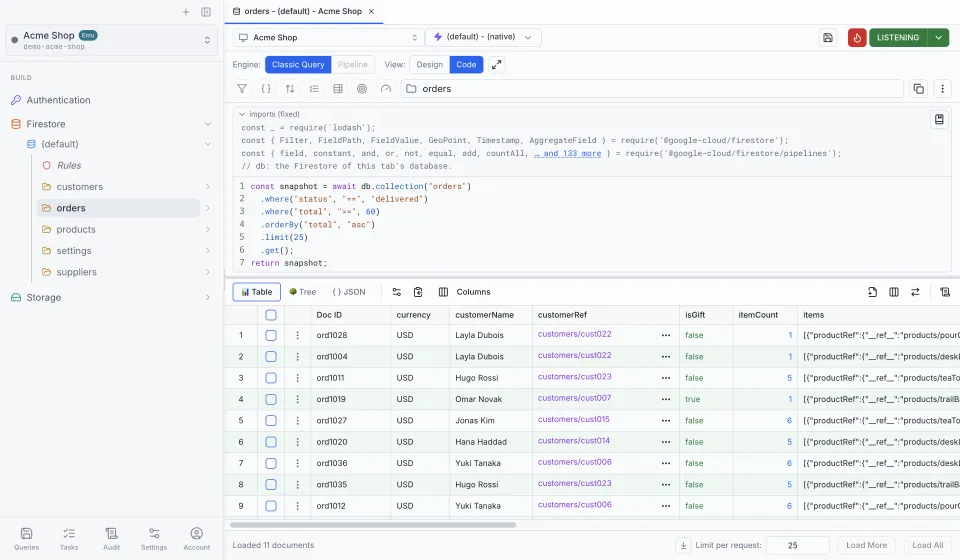
    The Code view showing the same query as SDK code

    Switch View to Code to see the current query as code, for example const snapshot = await db.collection(...).limit(25).get(); followed by return snapshot;. Edit it and press RUN QUERY to run the code as written.

    • The code runs in an isolated sandbox. A fixed set of names is available above the editor: db, lodash as _, Filter, FieldPath, FieldValue, GeoPoint, Timestamp, AggregateField and the pipeline functions. require, Node and network access are not available.
    • The code can read and write. A write call shows a warning in the editor, and after the run a toast says The code changed data with the number of writes. A run that wrote data is recorded in the audit log.
    • A return is optional. When the code returns a snapshot or documents, they show as rows. At most 10,000 rows are shown. The tab has no realtime and no Load More.
    • Errors are named with their line above the editor. A run that fails shows Query failed with the line.
    • STOP appears while code runs. The time limit is Settings, Code Run Time Limit (120 seconds by default).

    The snippets button inside the editor opens a menu with two tabs, Samples and My snippets. Hover a snippet to see a preview of its code. Choose one to insert it into the editor.

    TabWhat it holds
    Samples292 ready-made, complete queries in 18 categories. They cover every pipeline stage and function.
    My snippetsYour own snippets. Search, insert and delete them, and choose Save current code as snippet… to add one.

    When you save a snippet under a name that already exists, the app asks before it replaces the old one. Your snippets are stored with your account and follow you to every machine. You can keep up to 100 snippets, and each snippet can hold up to 20,000 characters.

    Warning: Changed code cannot be turned back into builder rows. Count, Sum, Average, Explain and the engine switch work from Design only, and the app says This tab runs your code. Going back to Design with changed code asks Discard the code?.

    Explain a query

    See the plan the server chooses and the indexes it uses.

    On a Classic Query tab, choose Explain query in the toolbar. In the dialog:

    • Explain plan asks the server how it plans the query and which indexes it uses. It does not run the query.
    • Explain and analyze runs the query once and also returns execution statistics. Its reads are billed like a normal run.

    On a pipeline tab, choose Explain from the run menu. A Plan tab appears beside Table, Tree and JSON with the server text and a Copy button. If you change the pipeline afterwards, the Plan tab says The pipeline has changed since: run Explain again.

    Note: Explain is not available on an emulator, because the emulator returns no plan. A Classic Query on an Enterprise (native) database cannot be explained either: switch the tab to Pipeline and use its Explain.

    Saved queries

    Save a query to your account, organize it in folders and reopen it.

    1. Step 1: Set up the query and choose Save As (or Save for a query that is already saved).
    2. Step 2: In Save Query, pick a folder, or choose New Folder, and type the File name.
    3. Step 3: Confirm. If the name exists, the app asks Query already exists with Save as New and Overwrite.

    Open Queries in the bottom navigation to see your saved queries. The page has Search in current folder..., New Folder, and for each item Open, Move, Cut, Copy, Paste, Rename and Delete. Double-click a query to open it. Deleting a folder deletes what is in it and cannot be undone.

    A saved query keeps its connection, filters, sorts, limit, selected fields and engine. When a query written in Code view is saved, it reopens on the Code view. A reopened saved query does not run by itself: press RUN QUERY. If its project cannot be connected, the app says so.

    Note: Saved queries belong to your Firestore Studio account, so you must be signed in to save them.