Documentation

    How to use Firestore Studio, from the first connection to restoring a change.

    Audit log

    What the audit log records

    A local history of changes made from the app.
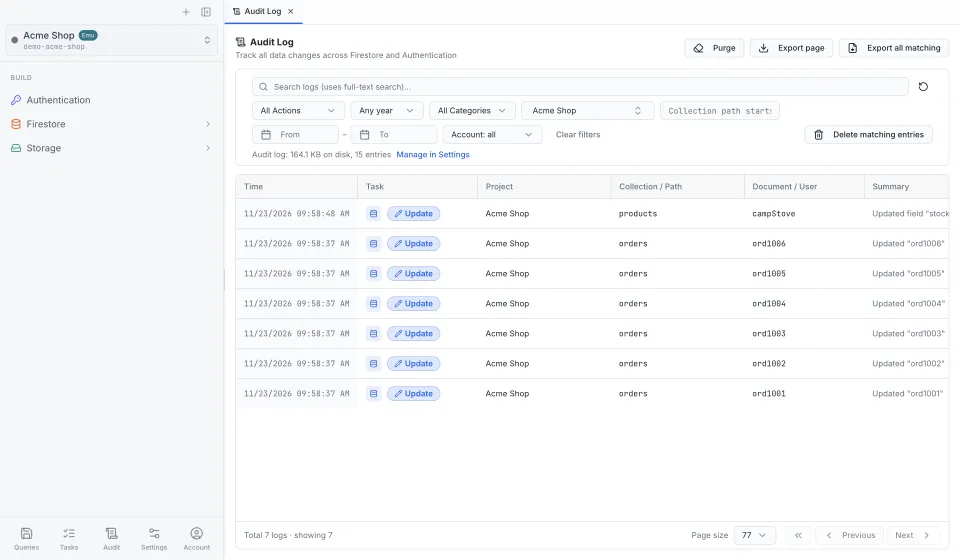
    The Audit Log filtered to one project

    Open Audit in the bottom navigation. The audit log records the changes you make from the app, with the earlier and new data where it could be read. It is stored on this computer, one set of files per account and year.

    CategoryExamples
    FirestoreDocument create, edit, delete, copy, move, bulk updates, imports, pipeline and code writes, restores.
    AuthUser create, edit, delete, claims, import, transfer, emulator actions.
    StorageUpload, create, edit text, metadata, visibility, copy, move, rename, delete.
    RulesPublishing Firestore or Storage rules, applying rules to an emulator.
    DatabaseCreate, clone and delete a database, PITR and delete protection changes, display name changes, backup delete and restore, and schedule changes.
    SettingsAdding, renaming, updating and removing saved service account and emulator connections.

    The list has Search logs, and filters for Action, Year, Category, project, Collection path starts with... and Account (all or this account). Clear filters resets them. A row has View log details, Restore this change and Delete log entry.

    The detail view shows the time, project, database, collection, recording account, document, user UID, task ID, a summary and the old and new data.

    Note: The audit log only holds what the app did. It does not record changes made by other tools or by your own apps. How long it keeps entries is set in Settings, Logs and disk space.

    Restore a Firestore change

    Put a document or its fields back from an audit entry.

    1. Step 1: Open the entry with View log details, or use Restore this change on the row.
    2. Step 2: Choose Restore Change. The Restore Document dialog opens.
    3. Step 3: For an entry that changed fields, the dialog says Put the fields of this entry back to their earlier values. The document must exist, and only those fields change.
    4. Step 4: For other entries (for example a delete), choose the target project, database, collection path and document ID. You can also add extra fields.
    5. Step 5: Tick Overwrite if document already exists only if you want to replace an existing document. Unticked, the restore only creates the document and an existing one is left untouched and reported as skipped.
    6. Step 6: Confirm.

    When Restore is not offered, the detail view says why: Restore is not offered with the reason. Typical reasons are that the earlier version was too large to keep, could not be read when the change was made, the item failed or was skipped, or the earlier data has already been removed by the retention settings.

    Warning: A restore is itself written to the audit log. A known limit: the Restore Document dialog does not pass an emulator host, and restores timestamp, int64 and double extra fields as maps, so check restored values on an emulator or when you add extra fields.

    Restore Auth, rules, Storage and connection changes

    Undo non-document changes where the earlier state was recorded.

    Restore Change also works for some changes that are not Firestore documents. The dialog names what will be written, lets you pick the Connection to restore on, and writes only what the entry changed.

    ChangeCan be restoredCannot be restored
    Auth userEdits of email, name, photo, phone, disabled, email verified and claimsPasswords, created users, deleted-all counts, bulk task summaries (restore the single-user entries)
    RulesA rules publish whose earlier rules text was recordedAn entry that does not say which database or bucket
    StorageContent type, cache control, custom metadata and visibilityFile content, moves, download tokens
    ConnectionsA rename of a service account or emulator connectionCredentials, removed service accounts, added connections (remove them instead)
    Auth emulator settingsThe earlier settings when recordedEntries without the earlier settings

    If the target changed again after the entry, the dialog warns about drift. Tick Restore anyway and overwrite the newer change to continue. Database operations are not undone from here.

    Note: Secrets are never kept in the audit log, so they are never written back. A value the log replaced with a redaction placeholder is not restored.

    Export, delete and purge entries

    Take a copy of the log or remove entries.

    The toolbar of the Audit Log page has Purge, Export page and Export all matching. Each row also has Delete log entry.

    • Export page saves the entries on screen. Export all matching writes every entry that matches the current search and filters, not only the page, to a JSON Lines file with one entry per line, including its task ID and metadata.
    • Delete log entry removes one entry. Delete matching entries removes all entries that match the filters, after counting them.
    • Purge opens Purge Audit Data. Choose a Date Range, a Project and a Collection / Path, choose Preview to see what matches, and type PURGE to confirm. At least one condition is required.

    Warning: Deleting entries also deletes the old and new data saved with them, so Restore is no longer possible for them. This cannot be undone. The delete itself is recorded as one entry. A known limit: the From date of a range is read as UTC midnight and the To date as the end of your local day.