1Step 1: Open a collection tab and choose New Document in the toolbar.
2Step 2: In Path, keep the placeholder to get an automatic ID, or type the document ID after the collection path.
3Step 3: Add fields in the Fields tab, or paste an object in the JSON tab.
4Step 4: Choose Create.
The path can also point into a subcollection, for example users/u1/orders/o1. The app refuses empty segments, . and .. as IDs, IDs of the form __x__, and IDs longer than 1500 bytes. It names the problem in the dialog.
Warning: If the ID already exists, the app asks Document Already Exists. Merge combines your fields with the existing document and keeps the other fields. Overwrite replaces the whole document. Cancel keeps the dialog open so nothing is lost.
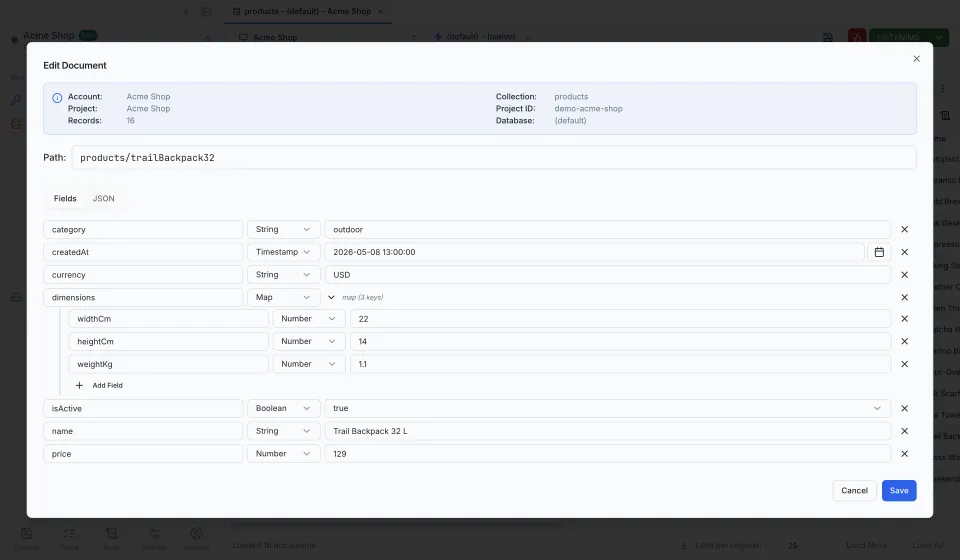
Change several fields at once in the Edit Document dialog.
Firestore Studio
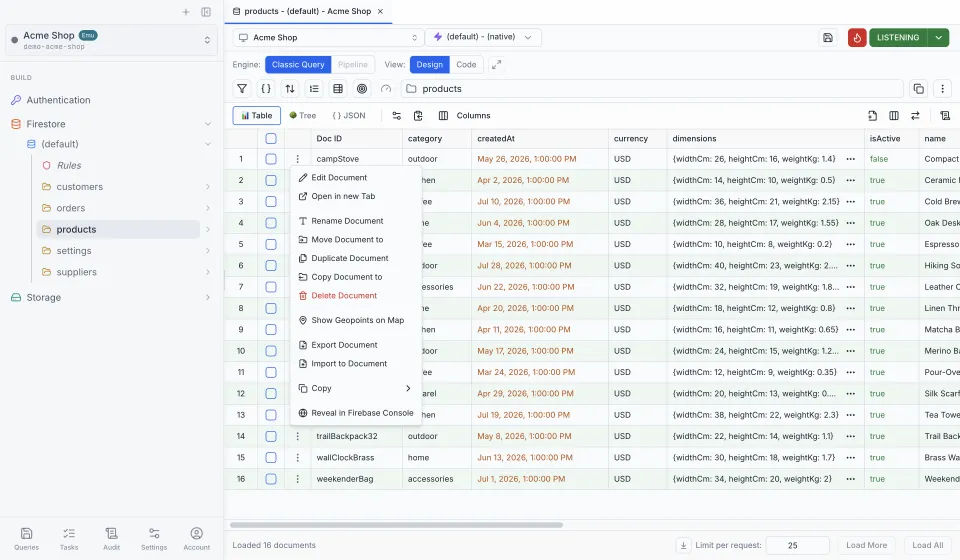
1Step 1: Open the row menu (the button at the start of the row) and choose Edit Document. Double-clicking the Doc ID does the same.
2Step 2: Change values in the Fields tab, or edit the JSON in the JSON tab.
3Step 3: Choose Save.
Closing the dialog with Cancel or Esc discards your changes. You can add and remove fields. Switching from JSON to Fields with invalid JSON is blocked with the banner Cannot switch mode — fix the following.
The row menu also offers Open in new Tab (shows only that document), Export Document, Import to Document (import fields from a JSON file into this document), Copy with Document ID, Resource Path and Data as JSON, and Reveal in Firebase Console.
Field types in the editor:
In the Fields tab each row has a name, a type and a value. The Field type list offers:
String, Boolean, Null
Number. On Enterprise (native) databases this is split into int64 and double.
Timestamp with a date and time picker
Geopoint with latitude and longitude
Reference with a document path such as users/u1
Map and Array, which can be nested
Note: Bytes and vector values have no editor. They are kept as they are when you save other fields. The app refuses values it cannot read by name instead of guessing, and an untouched field is not rewritten when you change another field.
Create a new document from an existing one, in the same or another project.
Firestore Studio
Action
Result
Rename Document
Creates a document with the new ID and deletes the original.
Duplicate Document
Creates a copy with a new ID in the same collection.
Move Document to
Copies the document to a different collection or project and deletes the original.
Copy Document to
Copies the document to a different collection or project and keeps the original.
1Step 1: Open the row menu and choose the action.
2Step 2: For Move and Copy, choose the target project and database under To (Target) and type the target document path, for example users/newDocId. For Rename and Duplicate, type the new document ID.
3Step 3: Leave Include subcollections on to bring nested collections along. It is on by default and the dialog says what it means for this action.
4Step 4: Tick Overwrite if document already exists only if you want to replace an existing target.
5Step 5: Choose the action button.
Warning: Rename and Move delete the original after the copy. With Include subcollections off, subcollections are not moved and stay behind under a document that no longer exists, so they do not show in the grid. The dialog refuses a target that is the same as the source, and shows the reason above the buttons.
1Step 1: Open the row menu and choose Delete Document.
2Step 2: Read the Delete Record confirmation and choose Delete.
The confirmation has a Don't show this again box. To turn the confirmation back on, use Settings, Query Setting, Ask Before Deleting a Document. A document that has subcollections always asks, whatever the setting.
Warning: Deleting cannot be undone from the grid. The audit log keeps the earlier data, and you can restore the document from there. See Restore a Firestore change.
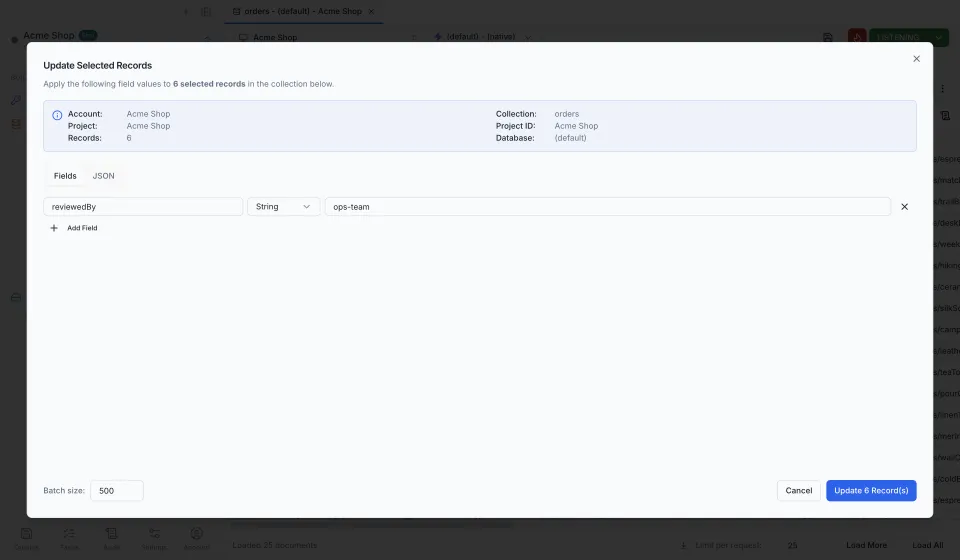
Tick the checkboxes of the rows you want, or the header checkbox for all loaded rows. A bar shows N selected with Update, Delete, Compare and More.
1Step 1: Choose Update. The dialog Update Selected Records takes fields in the Fields tab or an object in the JSON tab.
2Step 2: Set the Batch size (up to 500 documents per write).
3Step 3: Confirm. The update runs as a background task and writes the fields to every selected document.
Delete opens Delete Selected Records? with the account, project, database, collection and record count. It has the Include subcollections option and a batch size. More offers Move, Duplicate and Copy to Collection with a choice of what to do when a document already exists in the target: Overwrite replaces it, Merge combines fields, Skip leaves it unchanged.
Warning: Bulk delete cannot be undone from the grid. If you loaded the rows with a Select projection or a reshaping pipeline, the app warns that only the loaded fields are available, and refuses row-based copy, move and rename that would write partial documents.
To compare documents, tick two or more rows:
1Step 1: Tick at least two rows. With fewer the app says Select at least 2 documents to compare.
2Step 2: Choose Compare in the selection bar.
The dialog shows the documents side by side as JSON, aligned field by field. Differences are highlighted in red. A different key order inside a map is not reported as a difference.
In a time-travel view, Compare and Restore with live compares one document at the past time with its live version and lets you restore it. See Time-travel and restoring from a past time.
Change a field on selected documents, query results or the whole collection.
Use the toolbar buttons Add Columns and Rename/Delete Columns, or the same entries under More in the selection bar. In both dialogs To modify chooses the scope: Selected Docs, Collection, or Query Results. The dialog shows how many records are affected.
1Step 1: Choose Add Columns to add fields with a value to every document in the scope. Enter fields or JSON and choose Add Column.
2Step 2: Choose Rename/Delete Columns (dialog Rename / Delete Columns). Pick Rename or Delete, type the field name and, for Rename, the new name.
3Step 3: Use Add Operation to queue more than one change, then choose Modify Columns.
Warning: These actions cannot be undone. Both run as background tasks. Check the scope shown at the top of the dialog before you confirm. Selecting Collection changes every document in it.