Documentation

    How to use Firestore Studio, from the first connection to restoring a change.

    Cloud Storage

    Browse buckets and files

    Open a bucket, move around it and use the Storage emulator.
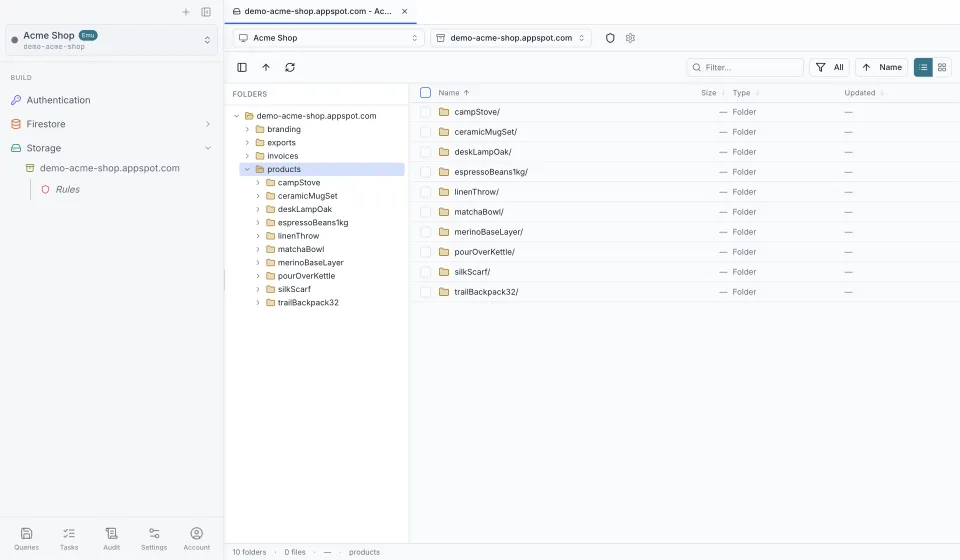
    A Storage bucket with the folder tree and the contents of one folder
    1. Step 1: Select a project and choose Storage in the sidebar, then a bucket. The explorer opens as a tab.
    2. Step 2: Use the project and bucket selectors at the top to switch. On an emulator, type a bucket name and choose Open.
    3. Step 3: Double-click a folder, use Up one level, the breadcrumb or the folder tree to move.

    The toolbar has Refresh, a name filter (Filter…), a kind filter (All items, Folders only, Files only, Images, Videos, Audio, PDFs, Text, Other), sorting by name, size, type or updated, and a list or grid view. Folders with more than 1000 objects load page by page.

    Note: If the project has no Storage bucket, the tab says Storage not set up yet with Set up Storage. If a bucket cannot be listed because Firebase Storage refuses the account, the app still lists the default bucket where it can.

    Storage works on an emulator connection. The explorer opens the default bucket, and you can open another bucket by name (up to 20 are remembered per connection). Upload, download, rename, copy, move, delete and metadata edits work.

    Features that need Google are disabled with a tooltip that says why: public access, signed URLs, adding or revoking download URLs, bucket info and Open in Firebase Console. If the Storage emulator is not found, the tab says No Storage emulator found for this connection and offers a host input with Save host.

    Note: Storage actions on an emulator are written to the audit log with the account type emulator.
    Upload and download

    Move files between your computer and a bucket.

    1. Step 1: Right-click a folder or the empty space and choose Upload file or Upload folder, or drag files into the explorer (it shows Drop to upload).
    2. Step 2: If a name already exists, the app asks An item with the same name already exists with Skip or Replace, and Apply to all remaining duplicates.
    3. Step 3: A strip shows Uploading n/m. View details opens the Upload progress dialog, where Cancel upload stops the rest.

    To download, right-click a file and choose Download, or a folder and choose Download folder… and pick a local folder. A strip shows Downloading n/m. Unsafe file names in a folder are skipped and listed, so a download cannot write outside the folder you chose.

    How many files transfer in parallel is set in Settings, Performance: Storage Upload Concurrency, Storage Download Concurrency and Storage Delete Concurrency.

    Preview and edit files

    Look inside a file and edit text files.

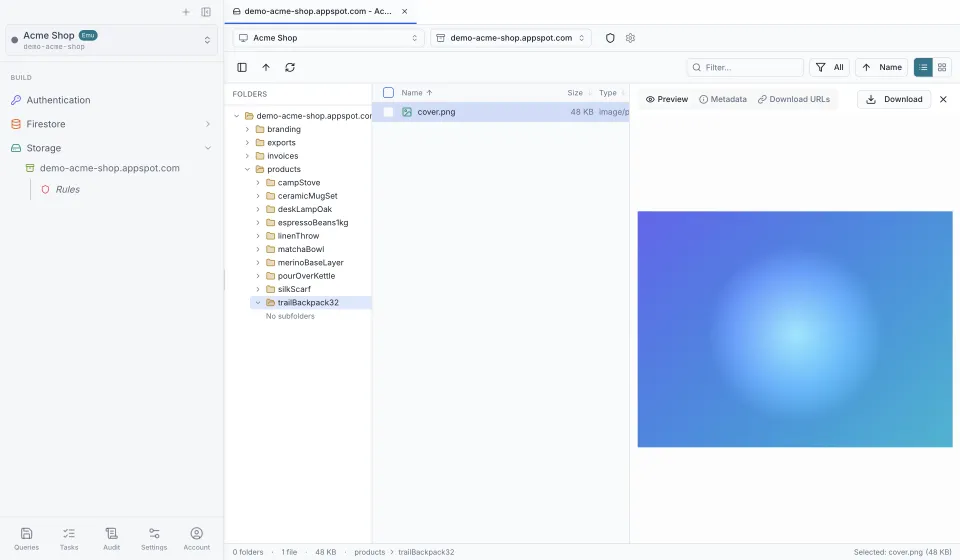
    An image file selected, with its preview on the right

    Click a file to open the side panel. Its header shows the file name and, at the right, icon buttons for Edit (text and code files), Download and Close panel. Below are the tabs Preview, Metadata and Download URLs. The Preview tab shows images, text, JSON and PDF files. A large or unsupported file says so, and Preview truncated. Download to see the full file. appears when only the start is shown. Settings, Performance has Enable File Preview, Storage Preview Max Size (KB) and the preview cache limits, and Clear cache deletes cached previews.

    1. Step 1: Right-click a folder and choose New text file, or open an existing text file.
    2. Step 2: Edit the text in the editor dialog.
    3. Step 3: Press Cmd/Ctrl+S or choose the save button. If a newer version of the file exists in the bucket, the app reports a conflict instead of overwriting it.
    4. Step 4: Closing with unsaved text asks Discard unsaved changes? with Keep editing and Discard.

    Note: Saving keeps the file content type, its access setting, custom metadata and download tokens. Files larger than 10 MB, files that were cut short on read and files that are not valid UTF-8 text are refused for editing, so a save can never truncate or corrupt them.

    Rename, copy, move, delete and transfer

    Change what is in a bucket.

    Right-click an item for Rename, Copy, Cut, Paste, Delete and the copy actions. Tick several items to act on them together. Shift+click selects a range, Cmd/Ctrl+click toggles one item, and a bar shows N selected with Clear, Delete and Transfer.

    • Rename asks before it replaces an existing name. Renaming a folder renames every object under it.
    • Copy or Cut and then Paste into a folder. If the name exists, a dialog offers Cancel, Skip, Keep both and Replace, with an option to apply to all. Pasting into the same folder makes a -copy name.
    • Delete asks for confirmation. A running delete has Cancel delete.
    • Transfer copies or moves the selection to another folder, bucket or project. Under From (Source) you see the summary. Under To (Destination) choose Project, Bucket and an optional Destination folder. Every opening starts as a copy, and the button reads Copy or Move.

    Warning: Move and Cut delete the source after the copy. Deleting objects cannot be undone: the audit log records the change but does not keep file content. Folder operations run as background tasks.

    Bucket info, CORS, lifecycle and rules

    Inspect and change bucket configuration.

    Choose Bucket info and settings in the explorer toolbar. The dialog has four tabs.

    TabWhat it shows or changes
    InfoBucket configuration, including versioning.
    CORSRules with Origins, Methods, Response headers and Max age (seconds).
    LifecycleRules with an Action (Delete object, Set storage class, Abort incomplete multipart upload) and Conditions (all must apply) such as Age (days), Created before, Number of newer versions, Match prefix, Match suffix.
    UsageComputes Total objects and Total size.

    The Security rules button in the toolbar opens Storage Security Rules: the active release, ruleset and creation time, an editor, and Deploy. Deploying creates a new ruleset and updates the release for every client.

    Warning: CORS, lifecycle and rules changes apply to the real bucket at once. A lifecycle rule can delete objects automatically.