Documentation

    How to use Firestore Studio, from the first connection to restoring a change.

    Browsing data

    Open a collection

    Find collections in the sidebar or type a path.
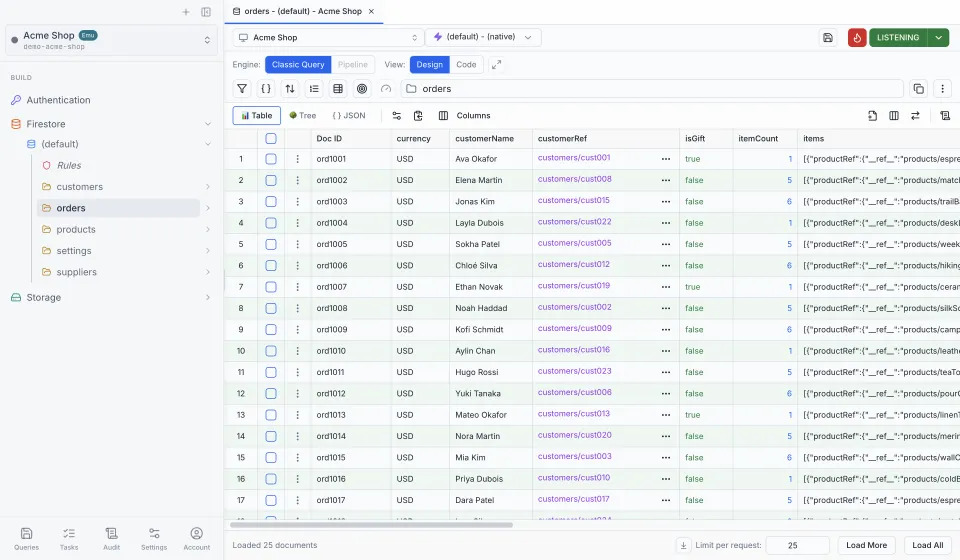
    The orders collection open in a tab, with the collection tree on the left
    1. Step 1: Select a project in the project switcher.
    2. Step 2: Expand Firestore in the sidebar. The databases of the project are listed with their kind tag.
    3. Step 3: Expand a database. It lists Rules and its collections.
    4. Step 4: Click a collection. It opens in a tab and the query runs at once.

    Opening the same collection again focuses the existing tab. Right-click a collection for Open collection, Copy name, Copy path, Rename Collection, Copy / Transfer Collection and Delete Collection, plus Edit schema… when the database has a schema. Right-click a database for Refresh, Create New Collection and other database actions.

    Above the grid, the Collection name or path box shows what the tab queries. Type a collection path such as users/u1/orders to open a subcollection. A path with an even number of segments, such as users/u1, opens that one document.

    To create a collection, choose Create New Collection from the database menu or the toolbar. The dialog asks for a Collection ID and then takes you to create the first document, because Firestore has no empty collections.

    Note: If a collection fails to list, the sidebar shows the error with a Retry button instead of an empty list. An empty collection list means the database has no collections.
    Subcollections and collection groups

    Reach nested data by path, collection group or a saved schema, and choose how actions find subcollections.

    The sidebar lists top-level collections. The app does not read documents to look for subcollections. You reach them in three ways.

    • By path: type the full path in Collection name or path, for example users/u1/orders.
    • As a collection group: turn on the Collection Group query toggle. The tab then queries every collection with that ID, at any depth, and shows a note that it queries all collections with that ID.
    • From a collection schema: right-click a database and choose Collection schema… to define collections, subcollections and fields. The sidebar tree is drawn from the schema. Removing something from the schema deletes nothing in the database.

    When you copy, move, rename, duplicate or delete a collection, a collection group, a document or selected documents, and Include subcollections is on, the dialog offers two ways to find the subcollections.

    OptionWhat it doesWhat it leaves behind
    As defined in the collection schemaFast. Takes the subcollections from the collection schema and checks no document.Subcollections the schema does not define are not touched and stay where they are.
    Check every documentLooks in every document for subcollections, so it is slower on a large collection.Nothing is missed, whether or not the schema defines it.

    The default choice is set in Settings, Collection schema. The schema is kept up to date when a task ends, also when the task ran in the background. It follows a collection when you rename, move or copy it, and its subcollections stay under their parent.

    Warning: Known defect: on a collection group tab, inline edit, delete and copy of a row address the document by collection and ID only. If a top-level document has the same ID, it can be hit instead. Rename and delete of the collection group itself are guarded and show a refusal where they cannot run. Open the document by its full path before you edit it.

    The data grid

    Rows, the footer, paging and the limit per request.

    The data grid with a row number, a checkbox, a row menu and one column per field

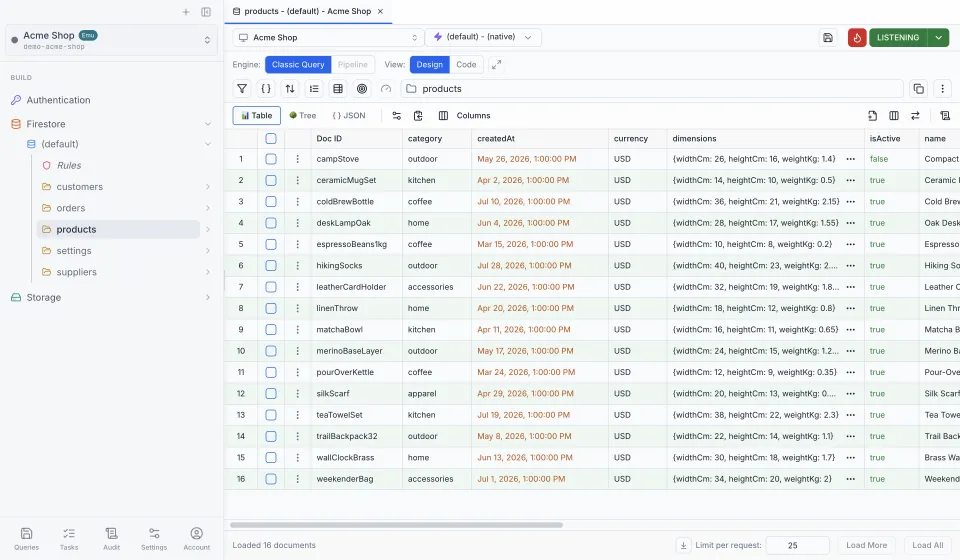
    Each row is one document. The first columns are a selection checkbox, the row number, the document actions button and Doc ID. The other columns are the document fields, in alphabetical order unless you set another order.

    The footer shows Loaded N documents, the Limit per request box, Load More and Load All. Change the limit box to change the page size. A zero, negative or empty value is ignored, and a decimal is cut to its whole part.

    • Load More appends the next page.
    • Load All loads every remaining document. Both buttons are disabled when there is nothing more to load.
    • Use the toggle beside the limit box (tooltip Switch to limitToLast) to change the label to Limit to last, which takes the last documents instead of the first.

    The default limit comes from Settings, Firestore Query Limit (25 by default, 1 to 10000). Click a header to sort. See Columns: sort, resize, hide and reorder.

    Note: Sorting by clicking a column header reorders only the rows already loaded. To sort the whole collection, add a sort in the query builder. See Sort, select, cursors, offset and vector search.

    Columns: sort, resize, hide and reorder

    Shape the grid without changing any data.

    Click a header to sort ascending, again for descending, and a third time to clear the sort. Hover a field header and open its menu for these actions.

    Header menu itemWhat it does
    Sort Ascending / Sort DescendingSorts the loaded rows.
    Filter by FieldAdds a filter row for that field to the query builder. Press RUN QUERY to apply it.
    HideHides the column. A N Hidden button appears with the list and Show All.
    Copy Field NameCopies the field name.
    Split Column / Unsplit ColumnFor a map field, shows one column per key and puts it back.
    Delete Field in all Docs / Rename Field in all DocsOpens the Rename / Delete Columns dialog with the field filled in. This changes data. See Add, rename and delete fields across documents.
    1. Step 1: Drag the right edge of a header to resize a column. A column cannot be narrower than 80 pixels.
    2. Step 2: Open the columns popover Manage Columns to show or hide each column, Hide All or Show All. Collection Path and Document Path columns are available there and are off by default.
    3. Step 3: Drag columns in that popover to reorder them. The order is saved for the collection and synced to your account.

    To review or remove saved orders, open Settings, Display, Per-Collection Custom Field Orders and choose Manage…. Default Field Sort Order sets the order for collections without a custom one. Under Display, Auto-Split Map Columns splits every map field by default.

    Maps, arrays, references, timestamps and big numbers

    How each value type is shown and opened.

    Simple values show in the cell. Complex values show a summary, and a … button opens a dialog.

    TypeIn the cellTo see or change it
    MapA summary such as {} for an empty map… opens Edit Map Value with Fields and JSON tabs.
    ArrayA summary such as [ ] for an empty array… opens Edit Array Value. Edit it in the JSON tab.
    ReferenceThe path, for example users/u1… opens the reference editor. It keeps the value a reference.
    TimestampFormatted by your timestamp formatDouble-click for the date picker.
    GeopointLatitude and longitudeRow menu Show Geopoints on Map. Edit it in Edit Document.
    Integer above 2^53The exact digitsShown and saved without rounding.

    Choose the display format from the format settings menu in the toolbar: Timestamp, Number, Geopoint and Image URL. These change only how values are shown. The stored value never changes, and the editor still shows the raw number.

    Note: In the Edit Map Value dialog, invalid JSON is refused with a message and the dialog stays open. Closing the dialog with Esc, the X or a click outside discards your edits.

    Table, Tree and JSON views, and copying

    Switch how results are shown and copy values.

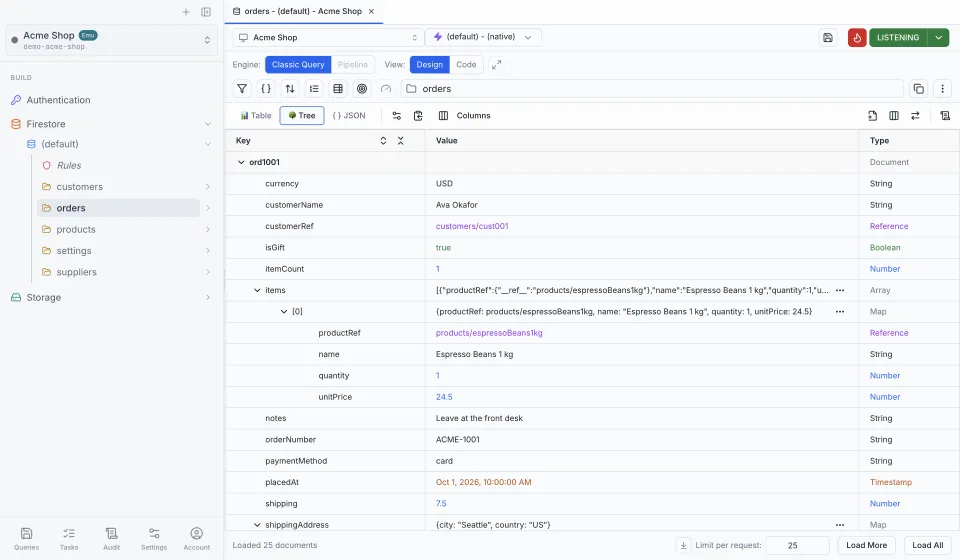
    The Tree view of the orders collection, with keys, values and types

    Above the results, the tabs Table, Tree and JSON show the same loaded documents. Switching keeps the data and the scroll position.

    • Tree: columns Key, Value and Type. Each document is a row of type Document followed by its fields. Click a document, map or array to collapse it, and use Expand all and Collapse all. Double-click a value to edit it.
    • JSON: a read-only array of the documents with line numbers. To change a document use Edit Document from its row menu, or edit a cell in the table.
    • Default Result View in Settings chooses which view a new tab starts in.

    Select a cell and press the copy shortcut to copy its value. Drag over cells, or Shift+click, to select a range. A range is copied as text with a header line, separated by tabs. Press Esc to clear the range.

    The copy settings menu has Include headers and Separator: Tab, Comma, Semicolon, Pipe, Space or Custom. Values that contain the separator, quotes or line breaks are quoted.

    Realtime updates and refreshing

    When the grid updates itself and when to press RUN QUERY.

    On Standard databases a collection tab can listen for changes. When realtime is on, the run button reads LISTENING and changed cells are highlighted briefly as other clients write. Turn it on or off with the realtime button in the toolbar. The choice is also saved as the default for new tabs. You can set the default under Settings, Realtime by Default.

    Where realtime is offWhat to do
    Enterprise (native) databasesThe grid reloads after each change you make. Press RUN QUERY to see changes made elsewhere.
    Pipeline modePipeline queries run once.
    A Nearest (vector) searchIt runs once.
    Time-travelReads at a past time are one-shot.
    Aggregate queriesCount, Sum and Average run once.

    Press RUN QUERY at any time to reload from the server. The Query Log button in the toolbar replaces the grid with a log of what the tab did, including errors. Clear empties it, and closing it brings the grid back.